mounamstudio.com

How to Fix WordPress White Screen of Death (10 Proven Methods)

Your site is blank. No error. No clue. Don’t panic. This guide helps you fix WordPress White Screen of Death problems fast. It also covers a WordPress white screen error and a WordPress website not loading.Now Start step 1 and test after each step.

Fix WordPress White Screen of Death

What Is the WordPress White Screen of Death (WSoD)?

The White Screen of Death (WSoD) is a blank page with no message. Your site simply stops loading. It is a classic WordPress blank screen.
Sometimes only the WordPress dashboard goes white. Newer versions may show a WordPress critical error notice instead. It’s the same problem in a friendlier outfit.

What Causes the WordPress White Screen of Death?

Most cases start with a PHP fatal error. WordPress can’t finish loading the page so it shows nothing. PHP memory exhaustion does the same thing.
The usual suspects are WordPress plugin conflicts and WordPress theme issues. Bad updates and WordPress corrupted files also cause trouble. This table matches each cause to a fix.
CauseTypical signFix
Plugin conflictStarted after an install or updateMethod 1
Theme errorStarted after a theme changeMethods 2 and 8
Low memoryHeavy pages failMethod 5
Failed updateStuck in maintenance modeMethod 7
Damaged core filesRandom blank pagesMethod 9
Host faultEvery site on the account is downMethod 10

What to Do Before Fixing the WordPress White Screen of Death

Stay calm. Take a website backup first. Use your host’s tool or an FTP client. Never experiment on a site you can’t restore.
Next, check your admin inbox. WordPress may have sent a recovery link. Check spam too. Then note what changed last. A new plugin? A theme edit? That clue saves time.

10 Proven Methods to Fix the WordPress White Screen of Death

Work through these steps in order. Test your site after each one. Together they fix WordPress White Screen of Death errors in most cases.
Easy fixes come first. Technical ones come last. A WordPress WSoD fix often takes under ten minutes.
MethodDifficultyTime
1–3Easy5–10 minutes
4–7Medium10–20 minutes
8–10Advanced20+ minutes
1

Disable WordPress Plugins to Identify Conflicts
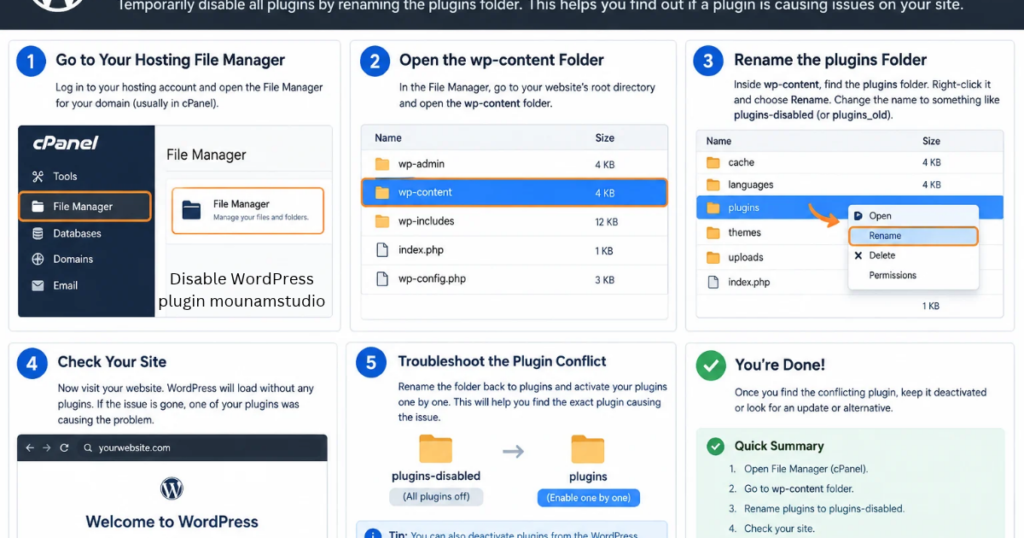
Connect with an FTP client. Open wp-content and rename the plugins folder to “plugins-off”. This switches off every plugin at once. Rename it back. Then activate plugins one by one. It’s like finding a dodgy bulb on a string of fairy lights.
Disable Plugin
2

Switch to a Default WordPress Theme

Still blank? Rename your active theme folder inside wp-content/themes. WordPress falls back to a default theme such as Twenty Twenty-Four. If your site returns, the old theme caused it. Check theme compatibility before switching back.

Default WordPress Theme
3

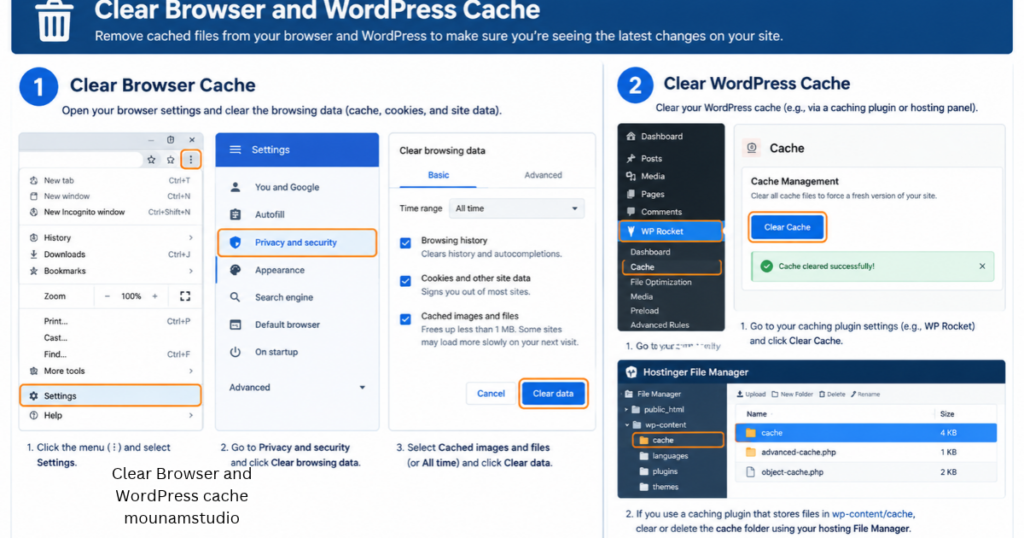
Clear Browser and WordPress Cache

Sometimes your site is fine. A stale cache is just serving a blank page. Try a hard refresh or an incognito window. Then do WordPress cache clearing from your cache plugin. Purge your host and CDN caches too.
4

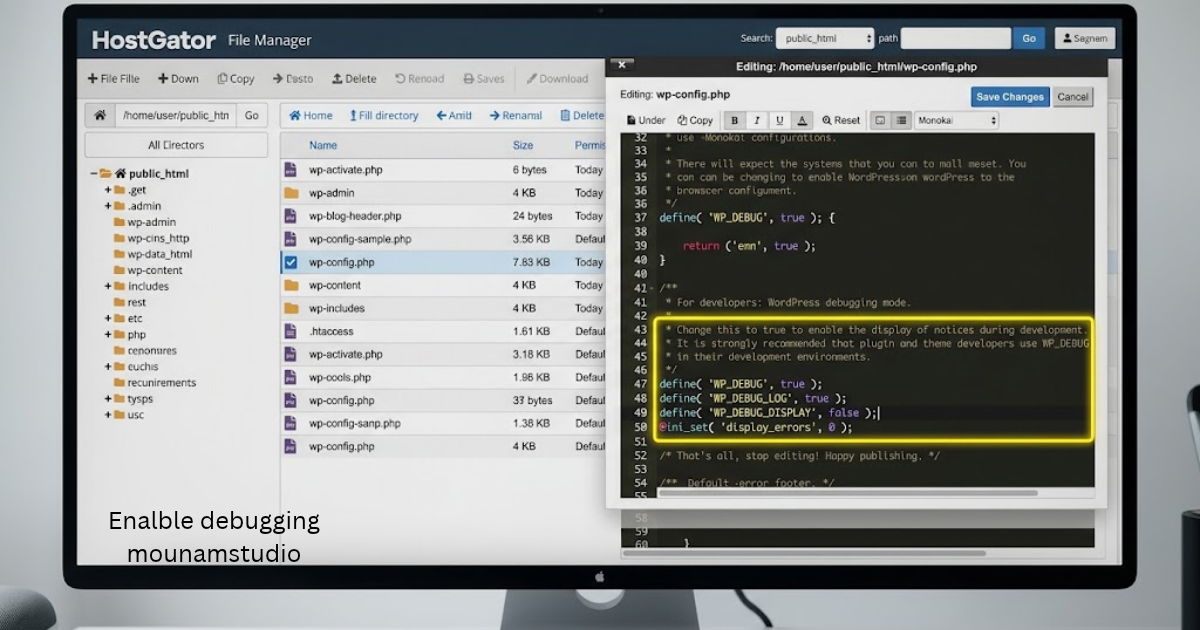
Enable WordPress Debugging Mode

Open wp-config.php and switch on WP_DEBUG. This turns on WordPress debugging mode. Errors then appear or save to a log. Read the official debugging guide. Switch it off on live sites afterwards.

define( 'WP_DEBUG', true );
define( 'WP_DEBUG_LOG', true );
define( 'WP_DEBUG_DISPLAY', false );
5

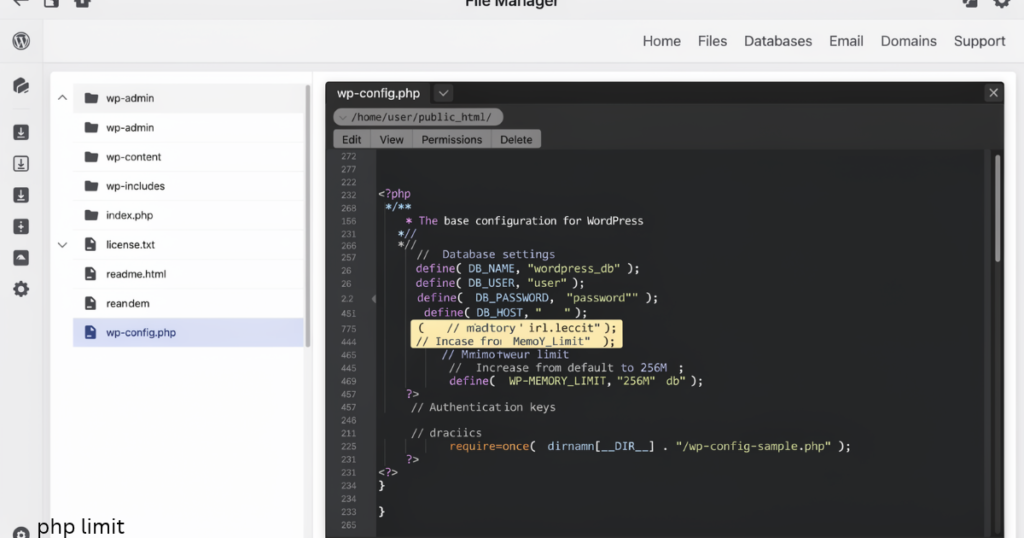
Increase the PHP Memory Limit

Low memory is a common culprit. Add the line below to wp-config.php. It raises the PHP memory limit WordPress can use. However, some budget UK hosts cap memory anyway. If nothing changes, ask support.

define( 'WP_MEMORY_LIMIT', '256M' );

INCREASE THE PHP LIMIT
6

Check and Fix WordPress File Permissions

Wrong WordPress file permissions can block your site. Set folders to 755 and files to 644. Lock wp-config.php to 440 or 600. Most FTP tools have a CHMOD option. See the WordPress permissions guide.

7

Resolve Failed WordPress Updates

An interrupted update leaves a hidden .maintenance file in your root folder. Delete it with FTP. Then run the update again. This clears most WordPress failed updates. Avoid updating on a weak connection.
8

Fix PHP Syntax Errors or Restore a Backup

One missing semicolon in functions.php can crash everything. Check your logs for the file and line number. Then undo your last edit. If that fails, try WordPress backup restoration. It’s the quickest road to website recovery.
9

Repair Corrupted WordPress Core Files

Download a fresh copy of WordPress. Replace only wp-admin and wp-includes. Never overwrite wp-content or wp-config.php. These WordPress core files may be damaged. Confident users can run  wp core download --force --skip-content through WP-CLI.

10

Check WordPress Hosting Server Errors

Rename your .htaccess file and reload the site. Next, confirm your PHP version suits your plugins. A host upgrade can break old code overnight. Finally, check your host’s status page for WordPress hosting issues and odd server configuration changes.

How to Fix the WordPress White ScreenWithout Admin Access

Locked out? You can still fix WordPress White Screen of Death problems. Every method above works through files. A WordPress admin not accessible message doesn’t stop you.
Pick the tool you have. Use an FTP client or your Hosting File Manager. Confident users can try SSH. Good WordPress FTP troubleshooting starts with correct login details.
RouteYou needBest for
FTP/SFTPLogin detailsMost users
File ManagerHosting panelBeginners
WP-CLISSH accessDevelopers

How to Fix the White Screen on a Specific WordPress Page

Only one page blank? Suspect a page builder or shortcode. Test the page with the default editor. Disable the builder if needed. A single WordPress blank screen often points to one broken element.
WooCommerce checkout is a common UK trouble spot. Check plugin compatibility first. Then remove large embeds or oversized images. Test the cart and checkout again.

How to Troubleshoot WordPress White Screen Errors Using Error Logs

To fix WordPress White Screen of Death issues faster, read your error logs. Look for debug.log inside wp-content. Your host’s Errors tool works too. Good WordPress error logs name the culprit.

Each line shows a file path and a line number. The folder name reveals the guilty plugin. For example: PHP Fatal error in /wp-content/plugins/seo-tool/main.php on line 42. Here, the seo-tool plugin is the problem.

How to Fix Related WordPress Errors That Cause a White Screen

The WSoD has cousins. A 500 error, a database connection failure, and a memory message all look alike. Each has its own fix. Read the exact wording before you act.
Check your WordPress hosting provider status page first. Then test your database login details in wp-config.php. Stuck in maintenance mode? Revisit Method 7.

When Should You Contact Your WordPress Hosting Provider?

Call your WordPress hosting provider when several sites are down. Do the same if you can’t reach your files. Many UK hosts offer 24/7 chat. Don’t wait too long.
Share your timeline and log lines. Ask for a server-side restore. Try this: “My site went blank at 2pm after a plugin update. Can you check the server logs and restore yesterday’s backup?”

How to Prevent the WordPress White Screen of Death in the Future?

Good habits mean you rarely need to fix WordPress White Screen of Death errors again. Test changes in a staging environment. Keep daily backups. Review automatic updates carefully. One bad update can sink a busy site.
Update plugins one at a time. Delete unused ones. Watch for security vulnerabilities and malware infection. Regular WordPress website maintenance keeps your site healthy. Think of it as a yearly MOT for your website.

Frequently Asked Questions About the WordPress White Screen of Death

Is the WordPress White Screen of Death dangerous?

Not usually. It’s a display problem rather than a hack. However, a malware infection can sometimes cause it. Scan your site once it’s back online.

Will I lose my data when I get a white screen?

Rarely. Your posts live in the database. The white screen only hides them. Still, take a backup before you change anything.

Can a plugin update cause the white screen?

Yes. It’s one of the top causes. A new version may clash with your theme or PHP version. Rename the plugins folder to test.

How long does it take to fix the white screen?

Simple fixes take minutes. Harder ones may take an hour. A restore from backup is often the fastest route.

Why is my WordPress admin white but the front end works?

Admin pages use heavier scripts. They may hit the memory limit first. Raise the limit and disable recently added plugins.

Can PHP version changes trigger the white screen?

Yes. Older plugins may fail on newer PHP. Roll back the PHP version in your hosting panel. Then update the plugin.

Do I need a developer to fix the white screen?

Not always. Most people solve it with FTP and patience. Call a developer if logs confuse you or your data is at risk.

Final Thoughts

You now know how to fix WordPress White Screen of Death errors step by step. Start simple. Read your logs. Keep backups close. Your site will be back before you know it.