How to Fix Elementor Stuck on Loading Screen (10 Proven Solutions)
Few things hurt like Elementor stuck on loading screen ten minutes before a client call. The panel never opens. The Elementor loading spinner just keeps turning.
Don’t worry. This Elementor troubleshooting guide gives you ten fixes, from quick to advanced. Most cases come down to a WordPress plugin conflict or a low WordPress PHP memory limit. Work in order and stop when the editor opens.
What Is the Elementor Stuck on Loading Screen Error?
This error happens when you open the editor and it never finishes. You may see Elementor editor not loading at all. Often the Elementor editor stuck on loading state lasts for minutes. It is one of the most common Elementor loading issue reports among developers in the USA, the UK and worldwide.
The error takes a few forms. Some users see an Elementor grey screen issue. Others get an Elementor blank screen. Sometimes the Elementor widget panel not loading is the only sign. All three mean the editor scripts could not finish. It can hit Elementor not loading in WordPress on any host.

Why Is Elementor Stuck on the Loading Screen?
Most causes sit in your server, a plugin or your browser. Elementor needs memory and clean scripts to run. When one lane is blocked the editor jams. That is how WordPress website loading problems often start.
Think of a chain. One weak link breaks it. The table below maps each cause to its usual symptom and its fastest fix. Use it as a quick map before you dig into the details.
| Cause | Typical symptom | Fastest fix |
|---|---|---|
| Plugin or theme conflict | Spinner never ends | Test with Safe Mode |
| Low PHP memory | Grey panel or white page | Raise memory to 512 MB |
| Old or mismatched versions | Editor freezes after update | Update or roll back |
| Browser cache or extensions | Works in another browser | Try incognito mode |
| Custom code error | Red errors in console | Remove recent snippets |
| Preloader or frame rules | Preview never appears | Disable preloader or edit headers |
| Rocket Loader or cache | Grey screen after speed tweaks | Turn off Rocket Loader |
| Corrupted page data | Only one page fails | Regenerate files, rebuild page |
Plugin or Theme Conflicts
A WordPress plugin conflict happens when two scripts fight for control. The editor then stalls. An Elementor plugin conflict often comes from add-ons that load many widgets. A WordPress theme conflict is just as common. Support guides name plugin clashes and theme scripts among the most common causes. Think of two drivers fighting for one lane.
Insufficient PHP Memory Limit or Server Resources
Elementor needs 256 MB at minimum. It recommends 512 MB and calls 768 MB best. Cheap hosting hits WordPress server resource limits first. Here is a real case. On WordPress.org, one user found the editor hung only when a Post Grid widget from an add-on sat on the page. Support pointed to low memory and asked for the Elementor System Info.
Outdated or Incompatible Elementor Versions
An Elementor Free and Pro version conflict can freeze the editor. The two plugins must match. Poor Elementor Pro compatibility with add-ons causes the same trouble. Elementor needs WordPress 6.5 or newer and works best on PHP 8.x. Elementor PHP version compatibility also matters. Old PHP can break new code.
Browser Cache, Cookies, or Extensions
Your browser stores old files. Sometimes they clash with new ones. That is a classic Elementor cache issue. A Browser extensions conflict is another quiet culprit. Ad blockers and privacy tools can block Elementor requests. Opening the editor in another browser is a quick way to test this.
Custom Code and JavaScript Errors
One broken snippet can stop the whole editor. Picture one dead bulb on an old string of lights. An Elementor custom code conflict works the same way. A single JavaScript error in your header or theme can block every script after it. Always check recent snippets first.
Theme Preloader and Cross-Origin Restrictions
Some themes add a loader screen. In the editor it may never hide. That is an Elementor preloader issue. Security headers can also block the preview. These Elementor X-Frame restrictions are common. A frame-ancestors none rule blocks the preview iframe that the editor needs. Cross-origin issues in WordPress can cause similar failures.
Cloudflare Rocket Loader and Caching Issues
Cloudflare Rocket Loader delays scripts to speed up pages. Elementor needs its scripts in the right order. When Rocket Loader is on, the editor can stay stuck on the grey loading page. Other WordPress caching problems do similar harm. Layers of cache can serve old editor files.
Corrupted Content or Unsupported Elements
One damaged page can freeze the editor. A broken widget or an unsupported element may be the trigger. If only one page fails while others load fine, the problem lives on that page. This is a sign of Elementor performance issues at the page level. Test that page after the main fixes.

How to Fix Elementor Stuck on Loading Screen
Here is how to Fix Elementor stuck on loading screen in ten steps. Start with step one. Stop when it works. This Elementor loading screen troubleshooting order moves from fast to advanced. Most people never need steps eight to ten.
Back up first. Use a staging site when you can. These steps help you Restore Elementor editor functionality without risk to your live site. The checklist and the table show what to expect from each fix.

Quick Fix Checklist
- Clear browser, plugin, server and CDN caches.
- Deactivate all plugins except Elementor and Elementor Pro.
- Switch to a default WordPress theme.
- Raise the PHP memory limit to 512 MB.
- Update Elementor, Elementor Pro and WordPress.
- Test in incognito mode with extensions off.
- Switch the editor loader method.
- Turn off Cloudflare Rocket Loader.
- Read the browser console and remove bad code.
- Regenerate CSS and data, then check each page.
| Fix | Time needed | Skill level |
|---|---|---|
| 1. Clear caches | 2 minutes | Beginner |
| 2. Plugin test | 10 minutes | Beginner |
| 3. Default theme | 5 minutes | Beginner |
| 4. Memory limit | 5 minutes | Intermediate |
| 5. Updates | 10 minutes | Beginner |
| 6. Extensions and incognito | 2 minutes | Beginner |
| 7. Loader method | 2 minutes | Beginner |
| 8. Rocket Loader | 5 minutes | Intermediate |
| 9. Code and console | 15 minutes | Advanced |
| 10. Regenerate and check content | 10 minutes | Intermediate |
1. Clear Your Browser and WordPress Cache
Clear WordPress cache first. Open an incognito window and try again. Then clear your browser cache. Purge your caching plugin next. After that purge your server cache and your CDN. Reload the editor. A stale Elementor cache issue is behind many stuck spinners. This step takes two minutes.
2. Deactivate Plugins to Find Conflicts
Deactivate conflicting WordPress plugins to find the culprit. Turn off everything except Elementor and Elementor Pro. Elementor’s own guide lists this as a first step. Reload the editor. If it loads, switch plugins back on one by one. This is how you Identify Elementor plugin conflicts. Then Resolve plugin compatibility issues by updating or replacing the guilty plugin.
3. Switch to a Default WordPress Theme
Switch to a default WordPress theme such as Twenty Twenty-Five. Open the editor again. If it loads, your theme is the problem. This tests Elementor theme compatibility fast. Look for a loader screen in your theme options. Disable theme preloader settings if you find one. Do this on staging so visitors see no change.
4. Increase the PHP Memory Limit
Increase PHP memory limit values first in WordPress itself. Edit wp-config.php file and add the line below above the “stop editing” comment. Save and reload. This helps Increase WordPress memory limit settings for WordPress. To Configure PHP memory limit at server level, see the PHP section further down. Confirm the change under Elementor, System Info.
define( 'WP_MEMORY_LIMIT', '512M' );5. Update Elementor, Elementor Pro, and WordPress
Update Elementor and Elementor Pro so both match. Update WordPress too. Then Update WordPress plugins and themes one at a time. Take a backup first. Old code often explains a Elementor loading error. Check the official requirements page if you are unsure which versions you need.
6. Disable Browser Extensions and Test in Incognito Mode
Disable browser extensions one at a time. Or open the editor in incognito mode. Extensions are usually off there. If the editor works, one extension was blocking requests. Try another browser as a second test. Ad blockers and privacy tools are the usual offenders. This fix takes two minutes and costs nothing.
7. Switch Elementor's Editor Loader Method
Go to Elementor, then Settings, then Advanced. Set the editor loader method to Enabled. That is how you Switch Elementor editor loader method settings. The Elementor editor loader method changes how the editor starts. Save and reload. It is a handy fallback. Kinsta’s troubleshooting article covers it too.
8. Disable Cloudflare Rocket Loader Temporarily
Disable Cloudflare Rocket Loader from your Cloudflare dashboard. Look in the speed settings. Purge the cache and test the editor. If that fixes it, you have two choices. Leave it off or exclude editor URLs with a rule. The second choice keeps speed for visitors. Test again after each change.
9. Check Custom Code, JavaScript Errors, and Cross-Origin Restrictions
Press F12 and Check browser console errors. Read the first red message. It often names the file at fault. Disable conflicting custom code you added lately. Next Fix X-Frame-Options restrictions that block the preview frame. Finally Resolve cross-origin security errors by allowing your own domain in your headers.
10. Regenerate CSS Files and Check Corrupted Content
Go to Elementor, then Tools. Click Regenerate CSS & Data. Then open pages one at a time. If one page fails, restore an older revision. You can also rebuild the page. This helps Fix corrupted Elementor widgets. Save often. Small saves are safer than one huge save.
How to Fix Elementor Editor Stuck on a Grey or White Screen
Grey and white screens are cousins. They are not twins. White often means a PHP crash. Grey often means a script problem. Match your symptom to the table below to save time.
Elementor’s help page lists the same three symptoms. A white page, a grey page and a frozen panel. Each has its own first step. Start with the one that matches your screen.
| What you see | Likely cause | First step |
|---|---|---|
| Blank white page | PHP fatal error | Turn on WP_DEBUG and read the log |
| Grey screen with spinner | Script or request blocked | Read the browser console |
| Widget panel stuck | Low memory or blocked REST call | Raise memory and check the firewall |
Fix a Blank White Editor Page
When the Elementor editor displays a blank page, suspect a PHP fatal error. Turn on WP_DEBUG and read the log. Look for memory messages or plugin names. Then Check WordPress site health under Tools in your dashboard. It flags old PHP and missing modules. Update both Elementor plugins and retest.
Resolve the Grey Screen and Endless Loading Spinner
When the Elementor editor shows a grey screen, the preview frame never loaded. Open the console and look for failed requests. Rocket Loader and blocked requests are common causes. A security rule can also stop the frame. This kind of Elementor loading issue usually ends once you fix the first red error.
Fix an Elementor Widget Panel That Keeps Loading
When the Elementor widget panel keeps loading, memory is the usual cause. Elementor suggests 512 MB when you run WooCommerce. Also check that your firewall is not blocking REST API or admin-ajax calls. Use this step to Troubleshoot Elementor editor panel problems. An Elementor editor panel freezes case often ends here.
How to Fix Elementor Loading Issues Caused by PHP and Server Limits
Servers set limits to protect themselves. Cheap shared hosting hits those limits first. Elementor is a heavy tool. It needs room to breathe. Raising a few values often cures a stubborn Elementor loading issue.

The table lists common targets. Treat them as starting points. Check them against your host’s own advice before you change anything.
| Setting | Minimum | Better target |
|---|---|---|
| WP memory limit | 256 MB | 512 MB |
| PHP version | 7.4 | 8.x |
| max_execution_time | 60 seconds | 300 seconds |
| max_input_vars | 1000 | around 3000 |
Check and Increase the WordPress PHP Memory Limit
If wp-config.php does not help, Edit php.ini file on your server. Set memory_limit = 512M. You can also Modify .htaccess file with the line below on some hosts. Many hosts also give a PHP settings page. Some hosts override your value anyway. Then ask support to raise the WordPress PHP memory limit.
php_value memory_limit 512MVerify PHP Version and Server Compatibility
Elementor works on PHP 7.4 but recommends PHP 8.x. Switch versions in your host panel. Test on staging first. Some old add-ons break on new PHP. That is how to Resolve Elementor PHP compatibility issues safely. Check the supported versions list to see which versions still get security fixes.
Check max_execution_time, max_input_vars, and Server Errors
Large pages need time and many input fields. Set PHP execution time limit to about 300 seconds. Raise max_input_vars to around 3000. These are common starting points and not Elementor rules. Then Check server resource limits with your host. Look at the server error log for crashes and timeouts.
Review WordPress Debug Logs for Errors
Add define('WP_DEBUG', true); and define('WP_DEBUG_LOG', true); to wp-config.php. Reload the editor. Then open wp-content/debug.log. It names the file and line that failed. This helps Troubleshoot WordPress loading errors quickly. Turn debug mode off when you finish. Never leave it on a live site.
How to Fix Elementor Plugin, Theme, and JavaScript Conflicts
Conflicts cause more freezes than anything else. Two pieces of code want the same space. One of them has to lose. A calm test plan finds the loser fast.
Always test on staging. Visitors never see your experiments there. Write down each result. Notes keep you from repeating the same test twice.
Identify Conflicting Plugins Using Safe Troubleshooting
Enable Elementor Safe Mode under Elementor, Tools. Elementor Safe Mode tests the editor without your other plugins getting in the way. If the editor loads, you have a plugin issue. Remember to disable Safe Mode afterwards. Then test plugins one by one to find the culprit.
Test Elementor with a Default Theme
Switch to a default theme and compare the results. If the editor loads, your theme adds something heavy. Check its options for a script optimizer or loader. Share your findings with the theme developer. A clear report speeds up the fix. Include your Elementor version and your PHP version.
Find JavaScript Errors in Browser Developer Tools
Press F12 and open the Console tab. Reload the editor. A message like “Settings object not found” points to a broken script. A 500 error on a wp-json route points to the server. The table below shows how to read common messages.
| Console message | What it means | Fix |
|---|---|---|
| Settings object not found | Editor data failed to load | Check memory and plugins |
| 500 on a wp-json route | Server crashed on request | Check PHP error log |
| Refused to display in a frame | Frame rule blocks preview | Loosen frame headers |
| Blocked by CORS policy | Cross-origin rule blocks request | Allow your own domain |
Disable Custom Scripts and Third-Party Integrations
Check your header and footer scripts. Look at analytics tags, chat widgets and pop-up tools. Disable them one at a time. A tag manager can inject code you forgot about. Any Elementor custom code conflict shows up fast this way. Add scripts back only after the editor works.
How to Fix Elementor Loading Issues with Cloudflare and Caching
A CDN sits between your server and the editor. It can change files on the way. That helps visitors. It can hurt the editor. Elementor wants fresh and untouched scripts.
Many WordPress caching problems come from stacked layers. A plugin, a server and a CDN may all hold old copies. Clear them in the right order. Then exclude editor URLs so the problem stays away.
Disable Rocket Loader and Test the Editor
Turn Cloudflare Rocket Loader off in the dashboard. Purge the cache. Open the editor in a fresh incognito window. If the grey screen disappears, you found the cause. Then exclude editor URLs instead of turning the feature off everywhere. Speed for visitors stays high that way.
Clear Cloudflare, Plugin, and Server Caches
Purge in this order. First clear your caching plugin. Next clear the server cache. Finally purge Cloudflare. Doing it backwards can bring old files back. Also exclude wp-admin and editor URLs from page caching and minification. That stops another Elementor cache issue before it starts.
Check X-Frame and Cross-Origin Restrictions
Elementor shows the preview inside an iframe. A Content-Security-Policy with frame-ancestors none blocks that frame. An X-Frame-Options header can do the same. Loosen the rule for your own domain. That is how you Fix X-Frame-Options restrictions without weakening security for everyone. Ask your host if you are unsure.
Review CDN, Firewall, and Security Settings
Firewalls sometimes flag editor requests as attacks. Check ModSecurity, Cloudflare WAF events and bot protection. Look for blocked wp-json and admin-ajax calls. Add an allow rule for your own IP. Then retest. This step often ends Elementor not loading in WordPress cases on strict hosts.
How to Fix Elementor Loading Errors After an Update
Updates fix bugs. Sometimes they add new ones. A good plan keeps stress low. You want to Fix Elementor loading error problems without losing work.
Keep a fresh backup before every update. Then you can undo changes in minutes. Test updates on staging first. A short test saves a long evening.
Recovery Steps
- Back up the site before you touch anything.
- Match the Elementor and Elementor Pro versions.
- Regenerate CSS & Data, then save your permalinks.
- Roll back to the last working version if the editor still fails.
- Contact Elementor support with your System Info and error log.

Check Elementor and Elementor Pro Compatibility
Open Elementor System Info and compare versions. Elementor and Elementor Pro should match. Check that your add-ons support the new version. One old add-on can cause a Elementor Free and Pro version conflict that freezes the editor. Update or replace it. Good Elementor Pro compatibility starts with matching numbers.
Roll Back to a Previous Version When Necessary
Elementor has a built-in rollback under Tools. The free WP Rollback plugin also works. Pick the last version that worked. Your designs stay in the database, so they are safe. Still take a backup first. Then report the bug so the team can fix it. You will Restore Elementor editor functionality in minutes.
Regenerate Elementor CSS and Data
Go to Elementor, then Tools, then Regenerate CSS & Data. Next visit Settings, then Permalinks, and click Save. This rebuilds files and refreshes rewrite rules. Together they clear most stale data problems after an update. Case study: a user on WordPress.org still saw 500 errors with plugins off. The failing calls hit Elementor’s own REST routes.
Check V4 Elements and Experimental Features
Newer versions add V4 tools that use extra REST routes. In the thread above, 500 errors on those routes kept the editor from opening. Turn off experiments under Elementor, Settings, Features. Then retest. Check release notes for known issues. Experiments can raise Elementor performance issues on weak servers.
How to Prevent Elementor from Getting Stuck on Loading Again
Prevention beats panic. It is far easier than fixing Elementor stuck on loading screen at midnight. Build a monthly routine. Update on staging. Check System Info. Five minutes now saves five hours later.
Good habits also Improve Elementor editor performance. A lean site loads faster for you and for visitors. Fewer plugins mean fewer conflicts. Better hosting means fewer limits. Small steps add up.
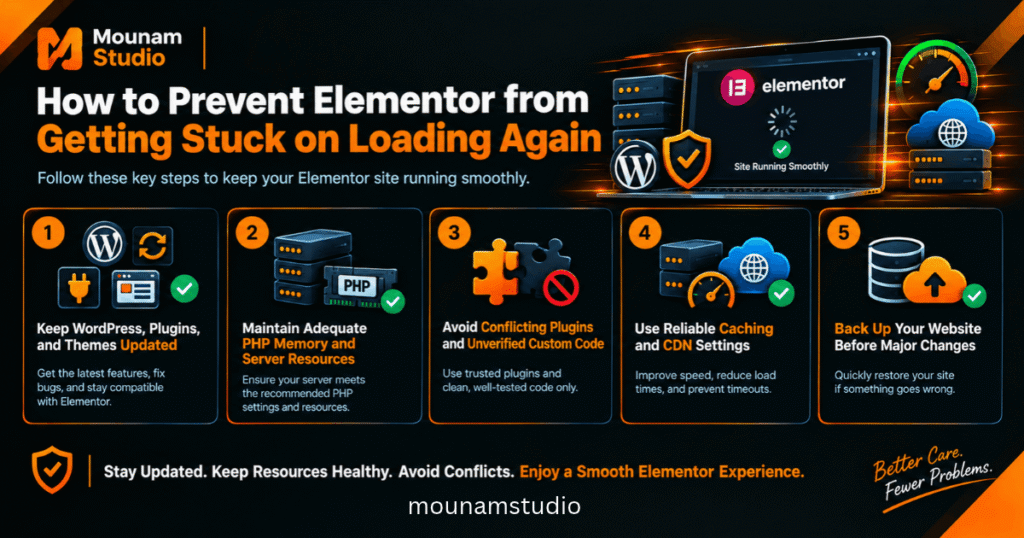
Keep WordPress, Plugins, and Themes Updated
Update WordPress, plugins and themes every month. Do it on staging first. Read the changelog before you click. Remove plugins you no longer use. Fewer plugins mean fewer conflicts. This habit also cuts WordPress website loading problems across your whole site.
Maintain Adequate PHP Memory and Server Resources
Aim for 512 MB of memory and PHP 8.x. Elementor calls 768 MB best for performance. Pick a host that lets you change limits. Good managed WordPress hosting is worth a few extra dollars or pounds. Cheap plans are a false saving when clients wait.
Avoid Conflicting Plugins and Unverified Custom Code
Vet every new plugin before you install it. Check reviews and the last update date. Test snippets on staging. Never paste unknown code into your live theme. Keep a short list of add-ons you trust. This list helps you Resolve plugin compatibility issues quickly later.
Use Reliable Caching and CDN Settings
Exclude wp-admin and editor URLs from caching and minification. Use Rocket Loader with care or skip it. Keep as few caching layers as you can. Too many layers cause confusion. Test the editor after each change. If it breaks, you know which change did it.
Back Up Your Website Before Major Changes
Turn on automatic daily backups. Take a manual one before big changes. Store copies off the server. A good backup turns a disaster into a ten-minute chore. It also gives you courage to try fixes. You can always go back.
Frequently Asked Questions About Elementor Loading Issues
These quick answers cover what developers ask most. Each one links back to a fix above. Use them as a quick reference when you are in a hurry.
If nothing here works, Contact Elementor support team members through your account. Send your System Info, your error log and a list of what you tried. Clear details get faster answers.
Why Is Elementor Stuck on Loading Forever?
Elementor loading forever usually means the editor scripts cannot finish. Low memory is the top reason. After that come plugin conflicts, old PHP and Rocket Loader. Check System Info first. Then test with Safe Mode. Fix the first problem you find and retest.
Why Is Elementor Editor Not Loading After an Update?
After an update the Elementor editor fails to load when versions do not match. Update Elementor, Elementor Pro and add-ons together. Then regenerate CSS and data. If it still fails, roll back to the last working version. Report the bug with your System Info attached.
How Much PHP Memory Does Elementor Need?
Elementor needs 256 MB at minimum. It recommends 512 MB and calls 768 MB best. WooCommerce sites should aim for 512 MB. Check your limit in System Info after every change. The right number depends on how many add-ons you run.
Can Plugins Cause Elementor to Get Stuck on Loading?
Yes. A plugin clash is among the most common causes. Add-ons with heavy widgets can also use too much memory. Deactivate plugins to test. Then switch them back on one at a time. The moment the editor freezes again, you have your culprit.
How Do I Fix Elementor's Endless Loading Spinner?
Start simple. Clear caches and try incognito mode. Then raise memory and test Safe Mode. Next switch the loader method and turn off Rocket Loader. Read the console for clues. Work from easy to hard. Most spinners stop before step eight.
Why Is the Elementor Widget Panel Not Loading?
Memory is the usual cause. A blocked REST API or admin-ajax request can also stop it. Raise the limit to 512 MB. Check your firewall logs. Disable any security rule that blocks Elementor routes. Then reload the editor and test again.
Does Cloudflare Rocket Loader Affect Elementor?
Yes. Rocket Loader changes how scripts load. Elementor depends on script order. That can leave you on a grey loading page. Turn it off or exclude editor URLs. Then purge the Cloudflare cache. Test in a fresh incognito window to be sure.
Can I Fix Elementor Loading Issues Without Disabling Plugins?
Often yes. Clear caches and raise memory first. Switch the loader method and read the console. Safe Mode lets you test without touching live visitors. Plugin deactivation is only needed if these steps fail. Always work on staging when you can.
Conclusion: Get Elementor Working Again
The top three fixes are clearing caches, testing plugins and adding PHP memory. Together they solve most cases. The other steps handle the stubborn ones. Keep this guide bookmarked for the next time the spinner shows up.
Now you know how to beat Elementor stuck on loading screen for good. Pick fix number one and begin. Your editor will be back before you know it.
Final Thoughts
Every stuck editor has a cause you can find. Work from the easy fixes to the advanced ones. Keep backups close and test on staging. Calm, step-by-step testing beats guessing every time.
Ready to try it? Open the checklist and start with step one. Share this guide with a teammate who builds with Elementor too.