How to Reduce Initial Server Response Time in WordPress (8 Proven Methods)
Learn how to reduce initial server response time in WordPress with 8 proven methods to improve website speed, TTFB, Core Web Vitals, and SEO performance.
Discover practical ways to optimize hosting, caching, databases, plugins, PHP, and CDN settings to make your WordPress website faster and improve user experience.

What Is Initial Server Response Time (TTFB) in WordPress?
Picture ordering coffee. The barista stares at you for a full minute before saying hello. That awkward pause is your Time to First Byte (TTFB).
Technically it’s the gap between a browser’s request and the first byte back. Your WordPress server response time starts right there.
TTFB vs Page Load Time
A fast first byte doesn’t promise a fast page. Still, a slow one holds up everything else. Images and scripts all wait their turn. That’s why TTFB shapes your page load time and your WordPress hosting performance.
What Is a Good Server Response Time?
Google calls 0.8 seconds or less good. Anything over 1.8 seconds is poor. Read the web.dev TTFB guide for details. These limits also feed your Core Web Vitals.
| Rating | TTFB |
|---|---|
| Good | 0.8 seconds or less |
| Needs improvement | 0.8 to 1.8 seconds |
| Poor | Over 1.8 seconds |
What Causes a High Initial Server Response Time in WordPress?
Your server does too much work before it replies. Think of a cook juggling fifty orders at once.
Match your cause to the fixes below. Start with the easy wins.
Slow Hosting and Overloaded Servers
Cheap shared hosting packs many sites onto one machine. Noisy neighbors grab the CPU and RAM. A traffic spike feels like a crowded elevator at rush hour. Your pages simply wait in line.
Uncached Dynamic Pages and Heavy PHP Processing
Without caching WordPress builds every page from scratch. It runs PHP and queries the database each time. Multiply that by hundreds of visitors. Those milliseconds become real server latency.
Bloated Databases, Plugins, and Outdated Software
A messy database slows every query. Heavy plugins add more work. Old PHP crawls through code. Together they create database bottlenecks that hurt your MySQL database performance.
Distance, DNS, and Network Delays
Distance matters. A visitor in London may hit a server in Texas. That adds network latency. A slow DNS lookup adds more delay before the first byte even starts. Check your DNS resolution time too.
| Cause | What Happens | Best Fix |
|---|---|---|
| Shared hosting | CPU and RAM get split between many sites | Method 1: better hosting |
| No caching | WordPress rebuilds every page | Methods 2 and 3: caching |
| Messy database | Slow queries pile up | Method 5: database cleanup |
| Old PHP | Code runs slowly | Method 6: update PHP |
| Distance and DNS | Extra network delay | Method 4: CDN and fast DNS |
How to Measure initial Server Response Time in WordPress
Measure before you change anything. Test from more than one location. Use the same tool every time.
Run each test three times. Take the average. One run can fool you.

Test With PageSpeed Insights and Lighthouse
Open Google PageSpeed Insights and paste your URL. Look for the “Reduce initial server response time” audit. Lighthouse inside Chrome shows similar data. It’s a quick start for website performance optimization.
Use WebPageTest, GTmetrix, and Chrome DevTools
WebPageTest lets you pick US and UK locations. Its waterfall chart shows the first byte clearly. GTmetrix works similarly. In DevTools, open the Network tab and check the waiting time. Your host may also send a Server-Timing header.
Find Slow Code With Query Monitor
Install Query Monitor to catch slow queries. It also flags heavy plugins and slow hooks. Run it on a staging site when you can. Many WordPress performance issues hide here.
| Tool | Best For |
|---|---|
| Google PageSpeed Insights | Quick check and the server response audit |
| WebPageTest | Waterfall chart and US or UK test locations |
| GTmetrix | A similar waterfall view |
| Chrome DevTools | Waiting time in the Network tab |
| Query Monitor | Slow queries, heavy plugins, and slow hooks |
Method 1: Upgrade to Faster WordPress Hosting
Your host sets your speed ceiling. No plugin can rescue a weak server.
Upgrade if TTFB stays high after caching. Slow admin pages and random errors are warning signs too.

Choose Managed WordPress, VPS, or Cloud Hosting
Managed WordPress hosting is the easiest pick. A VPS gives you control. A dedicated server hands you the whole machine. Cloud scales with traffic. Choose a data center near your visitors.
| Hosting Type | Speed Level | Best For |
|---|---|---|
| Shared | Basic | Small hobby sites |
| Managed WordPress | High | Business sites and blogs |
| VPS | High | Developers who want control |
| Cloud | High and scalable | Growing or global sites |
Check PHP Workers, LiteSpeed or Nginx, and NVMe Storage
Ask about PHP workers. Think of them as checkout lanes. More lanes mean shorter queues. Nginx or LiteSpeed often beats older Apache setups. NVMe storage trims disk wait too. Good WordPress server configuration saves hours.
Methods 2 and 3: Enable Full-Page and Object Caching
Caching serves ready-made pages instead of cooking fresh ones. Think meal prep for a busy week.
Picture a WooCommerce store stuck at 1.9 seconds TTFB on shared hosting. Managed hosting plus caching can often bring that near 0.4 seconds.
Method 2: Turn On Full-Page Caching
A WordPress caching plugin like WP Rocket or LiteSpeed Cache saves finished HTML pages. Visitors skip PHP entirely. Many hosts offer built-in server-side caching. Use that first. Run only one main caching layer because two plugins often clash.
Method 3: Add Object Caching With Redis or Memcached
Object caching keeps repeated queries in memory. Redis and Memcached are popular choices. WooCommerce and membership sites gain the most. Ask your host to switch it on. It’s a smart form of database caching too.
Exclude Pages That Should Not Be Cached
Never cache the cart, checkout, or account pages. They show private data. Add them to your exclusion list. Then test a login to make sure everything still works. Keep browser caching on for static files though.
| Cache Type | What It Stores | Best For |
|---|---|---|
| Full-page caching | Finished HTML pages | Almost every site |
| Object caching | Repeated database queries | WooCommerce and membership sites |
| Browser caching | Static files in the visitor's browser | Returning visitors |
| Edge caching | HTML at a nearby data center | Global audiences |
Method 4: Use a CDN and Edge Caching
A Content Delivery Network (CDN) keeps copies of your site closer to visitors. Less distance means less waiting.
Edge caching can even serve full HTML pages. That skips the long trip back to your origin server.

Pick a CDN: Cloudflare, BunnyCDN, or Your Host's CDN
Cloudflare has a free plan and wide coverage. BunnyCDN is simple and cheap. Some hosts bundle their own. For US and UK traffic any of them works. Look for HTTP/2 and HTTP/3 support.
Set Up Cloudflare APO or Full-Page Edge Caching
Cloudflare APO is a low-cost add-on. It caches your HTML at the edge. Visitors get pages from a nearby data center. That can slash TTFB for global audiences. Without HTML caching a CDN only helps static files.
Method 5: Optimize Your WordPress Database
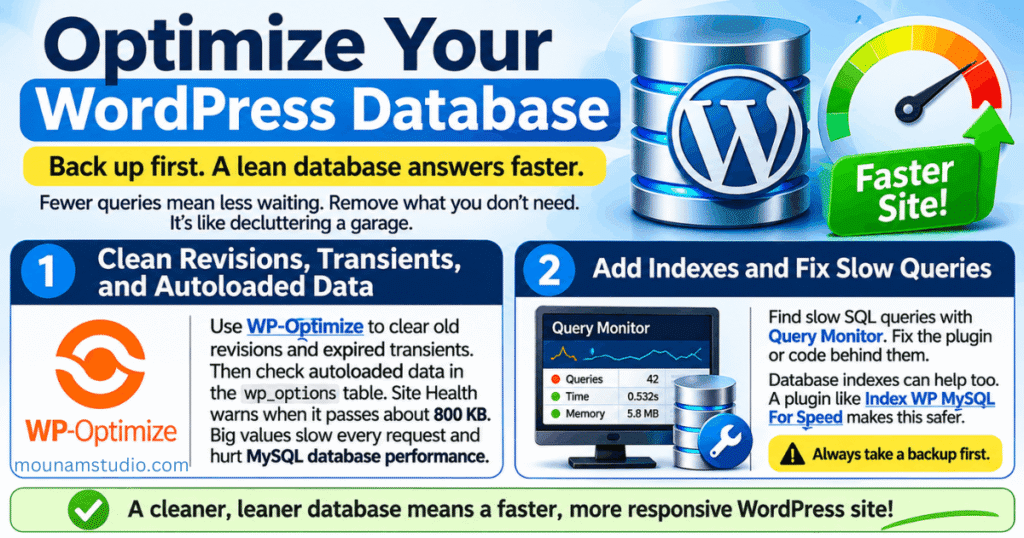
Back up first. A lean database answers faster.
Fewer queries mean less waiting. Remove what you don’t need. It’s like decluttering a garage.
Clean Revisions, Transients, and Autoloaded Data
Use WP-Optimize to clear old revisions and expired transients. Then check autoloaded data in the wp_options table. Site Health warns when it passes about 800 KB. Big values slow every request and hurt MySQL database performance.
Add Indexes and Fix Slow Queries
Find slow SQL queries with Query Monitor. Fix the plugin or code behind them. Database indexes can help too. A plugin like Index WP MySQL For Speed makes this safer. Always take a backup first.
Method 6: Update PHP, WordPress Core, Themes, and Plugins
Newer PHP versions run the same code faster. See the supported PHP versions list.
Test every update on staging first. Then update your live site. That keeps surprises away.
Move to the Latest Supported PHP Version
Switch versions in your hosting control panel. Check plugin compatibility first. Pick a release that still gets security fixes. This PHP version optimization often lowers TTFB all by itself. Test your site afterward.
Remove Heavy or Unused Plugins and Themes
Audit plugins with Query Monitor. Delete what you don’t use. A lightweight theme beats a bloated page builder when speed matters. Every unused plugin is like carrying an empty suitcase around.
Method 7: Compress Files and Tune Your Server
Smaller responses travel faster. Good settings help the first byte too.
Combine compression with sensible limits. Then re-test. Small gains add up.

Enable Brotli or GZIP Compression
Brotli compression and GZIP compression shrink text before sending. Most good hosts already turn one on. Check with a compression test tool. On Apache you can add this rule to your .htaccess file.
<IfModule mod_deflate.c>
AddOutputFilterByType DEFLATE text/html text/css application/javascript
</IfModule>
Tune OPcache, Memory Limits, and Keep-Alive
OPcache stores compiled PHP in memory. WordPress then skips recompiling on every request. Add these values to php.ini or ask your host. Also turn on Keep-Alive so browsers reuse connections. This is server response time optimization at its simplest.
opcache.enable=1
opcache.memory_consumption=128
opcache.max_accelerated_files=10000
Method 8: Apply Advanced Techniques to Improve WordPress TTFB
These tweaks are for developers. Use them after the basics. They take your WordPress TTFB optimization even further.

Change one setting at a time. Re-test after each change. That protects your site.
Use HTTP/3, TLS 1.3, and Fast DNS
HTTP/3 and TLS 1.3 speed up the SSL/TLS handshake. A fast DNS provider cuts lookup time. These steps save only milliseconds. Yet milliseconds add up. They help mobile performance most.
Preconnect, Early Hints, and Limit External Requests
Add preconnect hints for key third-party domains. Early Hints let browsers load assets sooner. Limit third-party scripts too. Each one adds extra requests. Smart HTTP requests optimization keeps pages light.
Reduce Admin-Ajax and Heartbeat Load
The Heartbeat API keeps PHP busy and eats your PHP workers. Use Heartbeat Control to set the dashboard interval to 60 seconds. That frees capacity for real visitors.
Your 8-Method TTFB Checklist

- Upgrade to managed, VPS, or cloud hosting.
- Turn on full-page caching with one plugin only.
- Add object caching with Redis or Memcached.
- Put a CDN in front and cache HTML at the edge.
- Clean revisions, transients, and autoloaded data.
- Move to the latest supported PHP version.
- Enable Brotli or GZIP and tune OPcache.
- Apply the advanced tweaks one at a time.
Frequently Asked Questions About WordPress Server Response Time
Here are quick answers to common TTFB questions. Each one is short and practical.
Still unsure? Test your site first. Then compare before and after.
What is a good initial server response time for WordPress?
Aim for 0.8 seconds or less as Google suggests. Cached pages often respond much faster. Checkout pages usually take longer. Judge each page type on its own.
Does a CDN reduce TTFB?
Yes. A CDN shortens distance and can serve cached HTML from the edge. Without HTML caching it mostly helps static files. Pair it with full-page caching for the best results.
Will caching plugins fix a slow server on their own?
Not always. A WordPress caching plugin helps a lot. A weak server still struggles on uncached pages. Fix your hosting quality too.
Does PHP version affect server response time?
Yes. Newer versions run code faster and use less memory. Upgrading often lowers TTFB by itself. Always test on staging first.
Why is my TTFB high only on some pages?
Uncached and dynamic pages need more work. Heavy queries or plugin code are common causes. Test those pages with Query Monitor.
How often should I test my server response time?
Test monthly. Test after every major update too. Check again after any traffic jump. Regular checks catch drops early.
Final Thoughts
Fixing your initial server response time is a step-by-step job. Measure first. Then tackle hosting, caching, and your CDN.
Clean your database and update PHP. Compress your files. Save the advanced tweaks for last. Faster pages can lower your bounce rate and lift your conversion rate.
Still Slow? Four Recovery Steps
- Re-test three times from two locations and compare the averages.
- Open Query Monitor and look for slow queries and heavy plugins.
- Ask your host about PHP workers and server load.
- Confirm your CDN caches HTML and not just static files.