How to Fix WordPress Database Connection Error (10 Proven Fixes)

You type your web address and hit enter. Instead of your homepage you see a blank screen. One line reads Error Establishing a Database Connection. Your stomach drops. Relax. This WordPress database connection error is more common than you think. It simply means your site cannot reach its MySQL database. Think of a shop with the doors locked from the inside. The products are still there. Nobody can get to them.
The cause is often a wrong database password, a crashed database server, or a broken plugin. The good news is that you can fix it fast. Each step is simple and truly beginner friendly. This guide shows you how.
1
Verify DB_NAME, DB_USER, and DB_PASSWORD
You changed settings or moved hosts
2
Confirm DB_HOST
Your host uses a custom address
3
Reset database user permissions
The login works but access fails
4
Run a PHP connection test
You want proof of the failure
5
Check MySQL server status
Other sites are slow too
6
Use WP_ALLOW_REPAIR
Tables look crashed
7
Repair in phpMyAdmin
You prefer a visual tool
8
Disable plugins
The error began after an update
9
Switch themes
A new theme just went live
10
Restore a database backup
Nothing else worked
1. What Does “Error Establishing a Database Connection” Mean in WordPress?
The message Error establishing a database connection means WordPress cannot talk to its MySQL database server. Think of a librarian who lost the key to the archive. The books exist. Nobody can reach them. WordPress keeps posts, pages, users, and settings in the MySQL database. Without access your site has nothing to show.
WordPress runs on the PHP programming language. Every page asks the database for content through SQL queries. When that request fails a database connection failure appears. Your visitors see the error. Your content stays safe inside the database tables.
Front-End vs Back-End: What the WordPress Database Connection Error Looks Like
On the front end visitors see the full-page error. In the WordPress admin dashboard you may see a different message about unavailable database tables. That points to a corrupted database rather than a broken login. The wording tells you where to look first.
2. What Causes the WordPress Database Connection Error?
Most cases trace back to a few simple causes. Wrong database credentials top the list. A down database server comes next. Together they explain most of the wordpress database connection issues that beginners report.
Other causes hide deeper. A corrupted database, damaged WordPress core files, or a heavy plugin can all cut the link. Even a recent website migration can leave old settings behind. The table below matches symptoms to causes.
Wrong Credentials and Host Settings
Your database username, database password, and host must match your hosting account exactly. A password reset or a new host changes them. One typo in your database configuration is enough to trigger the error.

Quick example: Imagine a blogger who moves to a new host over the weekend. On Monday the site shows the error. The old password is still in the config file. One edit fixes it.
Server and Database Problems
Hosting server downtime stops every connection. So does a traffic spike that pushes the server past its database connection limits. Cheap shared plans hit this wall often. A crash can also leave tables damaged.
Plugin, Theme, and Core File Conflicts
WordPress plugin conflicts and theme conflicts can eat memory or break queries. A low PHP memory limit makes things worse. Hacked or corrupted WordPress files can also trigger the error.
Wrong database credentials
Error on every page
Methods 1–3
Down database server
Error comes and goes
Methods 4–5
Corrupted database
Repair prompt in admin
Methods 6–7
Plugin or theme issue
Error after an update
Methods 8–9
Damaged WordPress core files
Error plus odd behavior
Section 9
Nothing else works
Site stays down
Method 10
3. Before You Start: Back Up Your WordPress Website
Always make a database backup first. One wrong edit can turn a small problem into a big one. A fresh copy of your files and database tables is your safety net. The official WordPress backup guide explains the basics.
You can use your hosting control panel or a backup plugin. Many hosts also run automated backups each night. Check for a recent copy before you change anything.

Safety first: Never edit your config file or run a repair without a fresh copy. Save one copy on your computer and one in cloud storage.
How to Back Up Files and Database Manually
Download your site files with an FTP client such as FileZilla or with the WordPress File Manager in your host panel. Then open phpMyAdmin and use the database export option. Save both copies on your computer. It takes about ten minutes and can save your site.
4. How to Diagnose the WordPress Database Connection Error
Start with quick checks. Good WordPress troubleshooting follows a simple order. Do not guess. Each test shows why Error establishing a database connection appears on your site.
Work from the easiest test to the hardest. Stop when the site loads. Note what you change so you can undo it later.
Test Whether the WordPress Admin Dashboard Loads
Visit yoursite.com/wp-admin. If you see a repair prompt your WordPress database tables are reachable but damaged. If you see the same error the database connection failure runs deeper. This one test splits the problem in half.
Enable WP_DEBUG and Check Error Logs
Open the wp-config.php file and turn on debugging. Then read the log inside the wp-content folder. Use the debug lines in the wp-config.php box in Section 5. The official debugging guide explains each setting.
Check Whether Other Sites on the Same Server Are Down
If other sites on your plan fail too the cause is hosting server downtime. Check your host’s status page. Then contact hosting provider support. They can see logs you cannot.
5. Check and Correct Database Credentials in wp-config.php
Wrong database credentials cause most beginner cases. Fix them first. Find the wp-config.php file in your website root directory. Open it with an FTP client or the WordPress File Manager. The wp-config documentation lists every setting.
Edit carefully. Keep the quotes and semicolons intact. Save the file and reload your site. If nothing changes move to the next method.

Method 1: Verify DB_NAME, DB_USER, and DB_PASSWORD
Compare DB_NAME, DB_USER, and DB_PASSWORD with the details in your hosting control panel. They must match exactly. Even one extra space breaks the database username or database password check.
DB_NAME
The name of your database
Hosting control panel, MySQL section
DB_USER
The database username
Hosting control panel, MySQL section
DB_PASSWORD
The database password
Set when you create or reset the user
DB_HOST
The address of the database server
Your host’s help pages
wp-config.php
<?php // Database credentials (Methods 1 and 2)
define( ‘DB_NAME’, ‘your_database’ );
define( ‘DB_USER’, ‘your_user’ );
define( ‘DB_PASSWORD’, ‘your_password’ );
define( ‘DB_HOST’, ‘localhost’ );
//Debugging (Section 4)
define( ‘WP_DEBUG’, true );
define( ‘WP_DEBUG_LOG’, true );
// Built-in repair tool (Method 6).
Remove after use. define( ‘WP_ALLOW_REPAIR’, true );
// Memory limit (Section 9)
define( ‘WP_MEMORY_LIMIT’, ‘256M’ );
Method 2: Confirm the DB_HOST Value
Most hosts use localhost. Some use a custom address such as mysql.example.com. Check your host’s help pages for the right DB_HOST value. A wrong host is common after a site migration.

Method 3: Reset Database User Permissions and Password
Open your database management panel inside cPanel. Reset the password and update the config file. Then confirm the database user permissions include all privileges. A user without access gives the same error even when your DB_PASSWORD is right.
6. Check Whether Your MySQL Database Server Is Running
A stopped database server breaks the link even with perfect settings. Checking MySQL server status takes a minute. It tells you whether the fault is on your side or your host’s.
If the server is down you cannot fix it from WordPress. Contact hosting provider support and share what you found. Mention any recent traffic spike too.
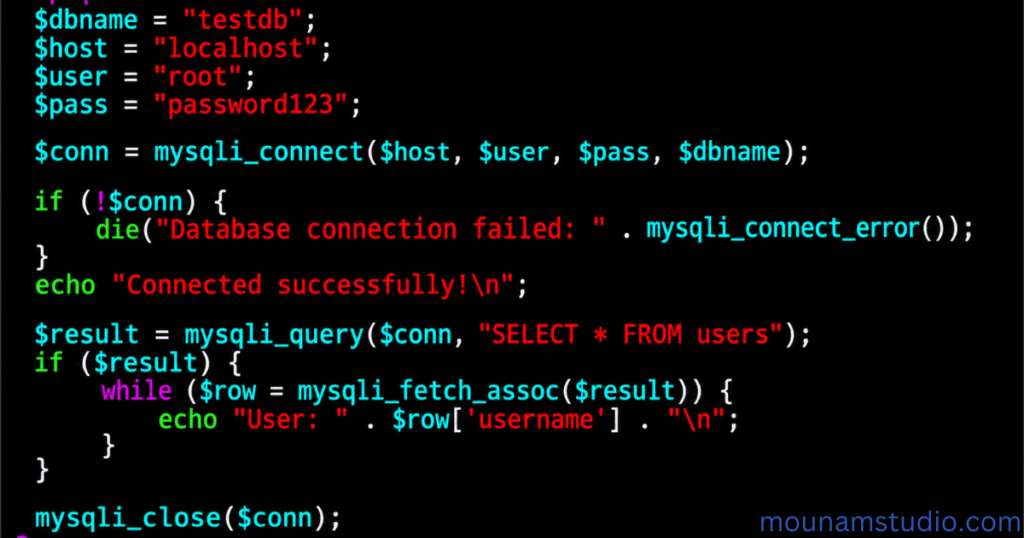
Method 4: Test the Connection With a Simple PHP Script
Upload a tiny script to your website root directory. It tries to connect with your login details using the mysqli_connect function. It then prints Connected or the exact error message. Delete it right after testing. Leaving it online is a security risk.
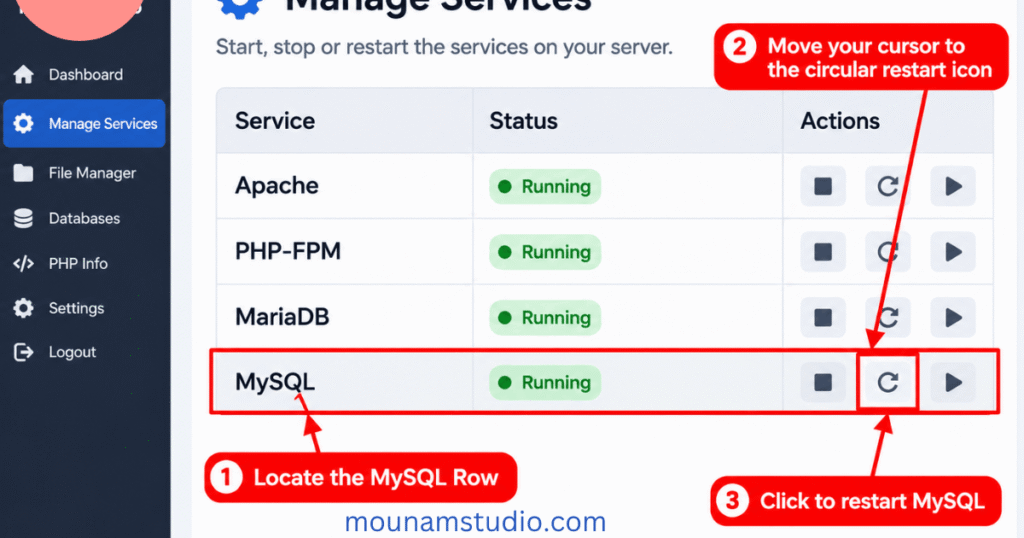
Method 5: Check Server Resources and Restart MySQL
Low server resources can stop MySQL from answering. On a VPS a server reboot or a service restart often helps. On shared hosting ask support to do it. The MySQL documentation lists service commands.
7. Repair a Corrupted WordPress Database
A corrupted database often follows a crash or a failed update. Symptoms include missing posts and repair prompts. WordPress database repair fixes damaged database tables without touching your content.
You have two safe routes. One uses the built-in database repair tool. The other uses phpMyAdmin. Take a database backup before either one.
WP_ALLOW_REPAIR
Access to your config file
A quick repair of all tables
phpMyAdmin
A login to your hosting control panel
Picking tables and optimizing them
Method 6: Use the Built-In WP_ALLOW_REPAIR Setting
Add the WP_ALLOW_REPAIR line from the wp-config.php box in Section 5 to your config file. Then visit /wp-admin/maint/repair.php and click Repair Database. Remove the line afterward. The page works without a login while WP_ALLOW_REPAIR stays on.

Method 7: Repair Tables in phpMyAdmin
Open phpMyAdmin and pick your database. Select all tables. Choose Repair table from the menu. Watch for any error status. This is also a good time for database optimization using the Optimize table option.

8. Fix WordPress Database Errors Caused by Plugins and Themes
WordPress plugin conflicts can drain memory or break SQL queries. A new plugin or a fresh update is the usual trigger. Test them one at a time.
You may not reach the dashboard. That is fine. An FTP client gives you full control. This also protects your WordPress performance while you test.
Method 8: Deactivate All Plugins via FTP
Rename the plugins folder to plugins-off. If the site loads rename it back. Then activate each plugin one by one. The one that brings the error back is your culprit.

Pro tip: Write down each plugin you activate. A short list saves you from retracing steps.
Method 9: Switch to a Default Theme
Rename your active theme folder. WordPress falls back to a default theme such as Twenty Twenty-Five. If the error disappears you have found theme conflicts. Update or replace that theme.

9. Fix Advanced WordPress Database Connection Issues
Still seeing Error establishing a database connection? Try these deeper fixes. They solve stubborn database connection issues. Back up first.
They need extra care. Change one thing at a time. Test your site after each change.
Increase the PHP Memory Limit
Raise the PHP memory limit if your site is busy. A low limit can crash queries. Set WP_MEMORY_LIMIT in your config file using the wp-config.php box in Section 5.
Update Site URL and Home URL in the Database
A wrong WordPress site URL or WordPress website URL can appear after a website migration. Fix both in the wp_options table using phpMyAdmin. Check your DNS settings and domain nameservers too if a domain just changed.
Replace Corrupted Core Files
Download a fresh copy of WordPress. Upload new wp-admin and wp-includes folders. These hold the WordPress core files. Never overwrite wp-content or your config file. This clears corrupted WordPress files safely. If links break after the upload restore the default rules below in your .htaccess file.
.htaccess
# BEGIN WordPress
<IfModule mod_rewrite.c>
RewriteEngine On
RewriteRule .* – [E=HTTP_AUTHORIZATION:%{HTTP:Authorization}]
RewriteBase /
RewriteRule ^index\.php$ – [L]
RewriteCond %{REQUEST_FILENAME} !-f
RewriteCond %{REQUEST_FILENAME} !-d
RewriteRule . /index.php [L]
</IfModule>
# END WordPress
Check the Table Prefix and Database Size Limits
Make sure $table_prefix in your config matches your tables. A bad database import can leave the wrong prefix. Redo the database export and import if needed. Also confirm you have not passed your host’s database connection limits or storage quota.
10. Restore Your WordPress Website From a Recent Backup
Method 10 is your last resort. Database restoration returns your site to a working state. You lose changes made after the backup. That is a fair price for a live site.
Restore from your hosting control panel or a backup plugin. Then test your pages. Confirm logins work and media loads.
Quick Recovery Steps
- Pick the newest backup made before the error began.
- Restore the files and the database together.
- Clear caches and test your pages and logins.
- Change your passwords once the site is stable.
What to Do If You Have No Backup
Ask your host for server snapshots. Many keep daily copies for a week or more. As a final step hire a specialist in WordPress database management. They can often rebuild database tables by hand.
11. How to Prevent WordPress Database Connection Errors in the Future
Prevention beats panic. A few habits keep this WordPress database connection error away. Each one takes little time.
Follow the three habits below. Together they cover backups, updates, and hosting quality.
Prevention Checklist
- Schedule automated backups every day.
- Store backup copies off your server.
- Update plugins, themes, and WordPress core often.
- Test updates on a staging site first.
- Delete unused plugins and themes.
- Run database optimization monthly.
- Watch your uptime with a monitoring tool.
Automated backups
Daily
You can restore fast
Staging tests for updates
Before each update
Fewer plugin and theme conflicts
Database optimization
Monthly
A lean database responds faster
Set Up Automated Backups and Monitoring
Schedule automated backups every day. Store copies off your server. Add uptime monitoring so you learn about hosting server downtime before your visitors do.
Keep Plugins, Themes, and WordPress Updated
Update plugins, themes, and WordPress core often. Test updates on a staging site first. Delete unused plugins. This lowers the risk of WordPress plugin conflicts and theme conflicts.
Choose Reliable Hosting and Optimize Your Database
Pick a host with strong server resources. Run database optimization monthly. Remove old post revisions and expired transients. A lean database improves WordPress performance and handles each traffic spike better.
12. Frequently Asked Questions (FAQs)
How to fix database connection error?
Check your WordPress database credentials in wp-config.php, verify that the MySQL server is running, and repair your database if necessary.
What does it mean when a website says error establishing a database connection?
It means your website cannot communicate with its MySQL database, so WordPress cannot retrieve the content and settings needed to load the website.
How to repair a database in WordPress?
Add define(‘WP_ALLOW_REPAIR‘, true); to your wp-config.php file and visit /wp-admin/maint/repair.php to run the database repair tool.
How can I fix a database error in WordPress?
Verify your database name, username, password, and host. Then check the MySQL server, repair corrupted database tables, or restore a recent backup.
How to establish a database connection?
Configure the correct database name, username, password, and hostname in wp-config.php so WordPress can connect to your MySQL database.
Final Thoughts
Error establishing a database connection looks scary. It is rarely fatal. Work from database credentials to server checks to WordPress database repair. Most sites recover in minutes.
Keep a fresh database backup ready. Review your database configuration after any change. Good WordPress troubleshooting habits make the next fix faster.