WordPress Security: The Complete Guide to Protecting Your Website

It often starts with something small. Your homepage loads slowly. A strange redirect appears. Then a customer emails you to say your site tried to install something on their phone. By morning, Google has flagged your domain as unsafe. Sales stop. Your host suspends the account.
This story is far too common. The good news is that you can prevent most of it. Strong WordPress security does not require a computer science degree. It requires a plan and a few steady habits. This WordPress security guide takes you from the basics to advanced defense. You will learn what attackers want and how they get in. You will also learn how to stop them and what to do if they win. Let’s begin.
1. WordPress Security Basics: What Every Site Owner Needs to Know
Think of your website as a house with many doors. Some are front doors. Others are small windows you forgot about. WordPress website security means locking each one. It also means watching who comes and goes. You do not need to be an expert to start. You only need a clear plan.
Cybersecurity for WordPress has two goals. First, keep attackers out. Second, limit the damage if one gets in. Good WordPress website protection mixes tools, settings, and habits. No single plugin does it all. So we will build your defense in layers.
What Is WordPress Security and Why Does It Matter?
WordPress is a free and open-source Content Management System (CMS). According to W3Techs, it runs roughly four in ten websites. That popularity cuts both ways. Hackers love big targets. One flaw in a popular plugin can open thousands of doors at once. Bots scan the web all day for those doors. They do not care if you run a small blog or a busy store. A hacked site can cost you rankings, money, and trust. It can also expose website data protection failures that lead to legal trouble. A lock on your front door costs little. A break-in costs a lot.
Core, Themes, Plugins, and Hosting: Where Your Site Is Exposed
Your site has four main layers. The first is WordPress core, the main software. The second is WordPress themes, which control design. The third is WordPress plugins, which add features. The fourth is your server. The WordPress database stores your posts, users, and settings. Files like wp-config.php and .htaccess hold sensitive rules. The wp-admin area is your control room. Attackers go after the weakest layer. Core is usually well guarded. Plugins and weak hosting are where most trouble starts.
2. WordPress Security Threats and Vulnerabilities You Should Know
Knowing your enemy helps you plan. Most attacks are not personal. They are automated. A bot finds a known weakness and fires. That is website threat prevention in a nutshell. You close known holes before the bots find them.
Attackers also change tactics. AI-enhanced automated attacks can scan code and craft exploits faster than before. Meanwhile, old tricks still work. Phishing emails still fool busy admins. Let’s look at the main WordPress security threats first. Then we will see where WordPress security vulnerabilities come from.
Common WordPress Security Threats
The table below shows the most common attacks. Each one has warning signs you can spot early.
| Threat | What it does | Warning signs |
|---|---|---|
| Brute-force attacks | Bots guess passwords again and again | Many failed logins and a slow site |
| Malware infections | Hidden code steals data or sends spam | Strange redirects and unknown files |
| SQL injection | Tricks your database through forms | Odd content changes and new users |
| Cross-site scripting (XSS) | Runs bad scripts in visitors' browsers | Pop-ups and stolen sessions |
| Cross-site request forgery (CSRF) | Tricks a logged-in admin into acting | Settings change without your input |
| Remote file inclusion | Loads an attacker's file onto your site | Unknown PHP files appear |
| Phishing attacks | Fake emails steal login details | Logins from new places |
| DDoS attacks | Floods your server with traffic | Site is slow or offline |

Many attacks end the same way. The attacker creates unauthorized administrator accounts. Or they use privilege escalation to turn a small user into a powerful one. Check your user list often.
Why Plugins and Outdated Software Cause Most WordPress Security Vulnerabilities
The numbers are clear. Patchstack counted 11,334 new vulnerabilities in the WordPress ecosystem in 2025, a 42% increase over the year before. About 91% were found in plugins and the rest in themes. Core is rarely the problem. The danger lives in outdated WordPress plugins and abandoned WordPress plugins. These are tools whose developers stopped patching them. Worse, roughly 46% of reported flaws had no developer patch when they were made public. You can read the full Patchstack report for details. That is why WordPress plugin vulnerabilities are your biggest risk. Good WordPress vulnerability management means tracking every plugin and removing dead ones.
Zero-Day Flaws, Supply Chain Risks, and Fast Attacks
Some flaws have no fix yet. We call these zero-day vulnerabilities. Attackers use them before anyone can patch. Supply chain vulnerabilities are another danger. In this case, a trusted plugin becomes the weapon. A developer account gets hacked. Or a plugin is sold to a new owner who adds a backdoor. Strong software supply chain security starts with trust. Install plugins only from reputable sources. Watch threat intelligence feeds for news about the tools you use. Then apply WordPress security patches the same day they appear.
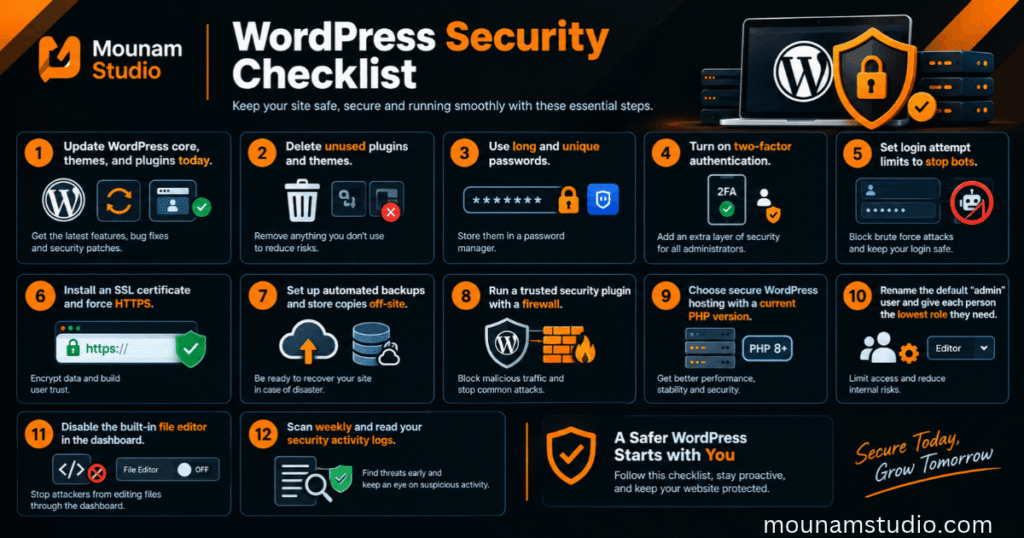
3. WordPress Security Checklist
Reading about threats can feel heavy. A checklist makes it lighter. You can finish most of these steps in one afternoon. Each item blocks a real and common attack path.
Think of this as your first website security audit. Tick the items you already have. Then fix the gaps one by one. Later sections explain each step in detail.
Quick-Start WordPress Security Checklist
Use this WordPress security checklist as your starting point.
- Update WordPress core, themes, and plugins today.
- Delete every plugin and theme you do not use.
- Use long and unique passwords stored in a password manager.
- Turn on two-factor authentication for all administrators.
- Set login attempt limits to stop bots.
- Install an SSL certificate and force HTTPS.
- Set up automated backups and store copies off-site.
- Run a trusted security plugin with a firewall.
- Choose secure WordPress hosting with a current PHP version.
- Rename the default “admin” user and give each person the lowest role they need.
- Disable the built-in file editor in the dashboard.
- Scan weekly and read your security activity logs.
4. WordPress Security Best Practices
Best practices are boring on purpose. They work because you repeat them. WordPress security best practices start with three habits. Keep software current. Host on a safe server. Back up everything. Get these right and you block most attacks.
Think of them as seatbelts. You may never need them. When you do, nothing else matters. These website security measures cost far less than a cleanup bill. Let’s walk through each one.
Keep Everything Updated
Updates are your best friend. Most WordPress core updates that fix security bugs install by default. You should still check them. Turn on auto-updates for plugins and themes you trust. You can do this in the Updates screen of your dashboard. Developers can run wp core update and wp plugin update --all with WP-CLI. Test big updates on a staging copy first. Also keep your PHP version supported. Old PHP versions stop getting security patches. That leaves your whole server exposed.
Choose Secure WordPress Hosting and Enable HTTPS
Your host is the ground your house stands on. Weak ground makes every lock less useful. Look for security-first hosting with malware scanning, isolated accounts, and daily backups. The table compares common options.
| Hosting type | Security level | Best for |
|---|---|---|
| Shared hosting | Basic, because neighbors share the server | Small hobby sites |
| VPS hosting | Good, but you manage the server | Growing sites with technical skill |
| Dedicated hosting | Strong, because the server is all yours | Large or regulated sites |
| Cloud hosting | Strong and easy to scale | Sites with traffic spikes |
| Managed WordPress hosting | Very good, as the host handles patches and firewalls | Busy owners with little time |
Next, turn on HTTPS encryption. Many hosts offer a free SSL certificate from Let’s Encrypt. SSL/TLS encryption protects logins and payment details as they travel. Force the HTTPS protocol across your whole site. Browsers also warn visitors about sites without it.
Back Up Your Site Automatically
Backups are your parachute. Follow the 3-2-1 rule. Keep three copies of your data. Store them on two different types of media. Keep one copy off-site. Off-site backups survive even if your server dies. Choose automated backups because people forget manual ones. Here is a quick example. Imagine a small shop owner whose store gets infected on a Friday night. She has daily clean backups stored in the cloud. She restores the site within an hour. Her competitor has no backup and loses weeks of orders. Good website backup and restoration habits make that difference. Test a restore twice a year. A backup you have never tested is only a hope.
5. WordPress Login and Access Control Security
Most attacks knock on the front door first. Your login page is that door. WordPress access control decides who gets in and what they can do once inside. Tight control here stops many attacks cold.
Two ideas matter most. Make logins hard to fake. Give people only the power they need. Together these steps shrink your risk by a large margin. Let’s start with passwords.
Strong Passwords and Two-Factor Authentication
Weak passwords are an open invitation. Set strong password policies for everyone. Use long passphrases with at least 14 characters. Never reuse them across sites. A password manager like Bitwarden or 1Password makes this easy. You can use password policy enforcement tools to block weak choices. Then add two-factor authentication (2FA). It asks for a second proof, such as a code from an authenticator app. Multi-factor authentication (MFA) works the same way and can include hardware keys. Text message codes are better than nothing. Authenticator apps and hardware keys are safer.
Limit Login Attempts and Secure Admin Login
Bots try thousands of passwords per hour. Brute-force protection slows them down. Set login attempt limits so that a user is locked out after a few failures. Add a CAPTCHA for extra defense. For a secure admin login, you can also limit wp-admin access to trusted IP addresses. Some owners move the login page to a custom URL. This reduces bot noise. However, it is not real protection. A determined attacker can still find it. Treat it as a small bonus. Never rely on it alone.
User Roles and the Principle of Least Privilege
Not everyone needs the keys to the castle. WordPress has roles such as Administrator, Editor, Author, Contributor, and Subscriber. Good user permission management gives each person the lowest role that fits. Writers rarely need administrator privileges. Review user access permissions every quarter. Remove old accounts at once when someone leaves. You can list admins with wp user list --role=administrator. Also, rename the default “admin” username. Finally, mind your sitemap security. The built-in sitemap can list author pages. That can reveal usernames to attackers. Disable that part if you do not need it.
6. WordPress Security Plugins and WAF
Plugins can do heavy lifting for you. They scan files, block bad traffic, and send alerts. WordPress security plugins are not magic. However, a good one gives you a strong second line of defense.
A firewall adds another layer. It sits between the internet and your site. It filters bad requests before they cause harm. Together, plugins and firewalls form practical WordPress security solutions for owners who lack time. Here is how to pick them.

How to Choose a Trustworthy WordPress Security Plugin
Several well-known tools exist. Features change often. So check each vendor’s page before you buy.
| Tool | Known for | Best for |
|---|---|---|
| Wordfence Security | Endpoint firewall, malware scanner, and login protection | All-in-one protection on one site |
| Sucuri | Cloud firewall, CDN, and cleanup service | Owners who want hands-on help |
| Solid Security | Login hardening, 2FA, and file change detection | Strong access control |
| Jetpack Protect | Free vulnerability checks | Simple and light protection |
| Security Ninja | Dozens of configuration tests | Audit-style reviews |
| SiteLock | Malware scanning and removal services | Hosting bundles |
| WPScan | Large vulnerability database | Developers and agencies |
Pick one main plugin. Do not run two firewalls at once. They can clash and slow your site. Check how often the plugin updates. Read recent reviews and look at active installs. Remember that security tools can have bugs too. Keep them updated like everything else.
Web Application Firewall (WAF) Explained
A Web Application Firewall (WAF) works like a bouncer at a club. It checks every visitor at the door. Bad actors get turned away. This gives you real WordPress firewall protection. There are two types. A cloud WAF sits in front of your server and blocks traffic before it arrives. A plugin-based WAF runs inside WordPress after the request loads. The cloud type usually performs better. Many cloud WAFs also bundle DDoS protection and a Content Delivery Network (CDN). Content delivery network (CDN) security helps absorb traffic floods and hides your real server address. Some firewalls offer “virtual patching.” That blocks an exploit even before you update the plugin.
7. Advanced WordPress Security Hardening
Basics stop most bots. Skilled attackers need more. WordPress hardening means shrinking the ways someone can attack you. You remove features you do not use. You lock the ones you keep.
These steps need care. A wrong edit can break your site. So back up first. If you are not comfortable editing files, ask your developer or host. Good WordPress security configuration pays off for years.
Harden wp-config.php and File Permissions
Your wp-config.php file holds database passwords and secret keys. Protect it well. First, refresh your authentication keys and salts. You can generate new ones at the official WordPress generator. New keys log everyone out and kill stolen sessions. Next, set safe file permissions. Folders should usually be 755. Files should usually be 644. For wp-config.php, use 440 or 400 if your host allows it. You can also move wp-config.php one level above your web root. WordPress will still find it. Attackers will have a harder time reaching it.
Disable XML-RPC, File Editing, and Directory Browsing
Some features help attackers more than they help you. The dashboard file editor lets an intruder change code in seconds. Turn it off by adding this to wp-config.php:
define( 'DISALLOW_FILE_EDIT', true );Next, add these rules to your .htaccess file on Apache servers. They block XML-RPC, hide folder listings, and stop PHP execution in the uploads folder (place the last rule in a separate .htaccess file inside wp-content/uploads):
# Block XML-RPC
<Files xmlrpc.php>
  Require all denied
</Files>

# Turn off directory browsing
Options -Indexes

# Inside wp-content/uploads/.htaccess
<Files *.php>
  Require all denied
</Files>
Be careful with XML-RPC. Some mobile apps and plugins still use it. Also add security headers such as HSTS, X-Frame-Options, X-Content-Type-Options, and a Content Security Policy.
Secure Your Database and Server
Your WordPress database is a treasure chest. Use a strong and unique password for the database user. Give that user only the rights it needs. Change the default table prefix on new installs. This slows down simple SQL injection attempts. For file transfers, use Secure File Transfer Protocol (SFTP) instead of plain FTP. Plain FTP sends passwords in the open. For server access, use Secure Shell (SSH) with keys instead of passwords. Close unused ports. Keep server software patched. These small steps make SQL injection and remote file inclusion much harder to pull off.
8. WordPress Security Scanning
You cannot fix what you cannot see. Scanning shows you problems before attackers use them. It works like a regular health check. Quick checks catch small issues early.
There are two main kinds of scans. One looks for bad code. The other looks for known weak software. You need both. Every good website security audit includes them. Let’s see how to run them well.
Malware and Vulnerability Scans: What to Run and How Often
A website security scanner can work in two ways. Server-side scanners read your files directly. They find hidden backdoors and changed core files. Remote scanners test your site from outside. They spot blacklisting, spam links, and bad redirects. Use malware scanning daily for busy sites. Run vulnerability scanning at least weekly. Tools like WPScan and Jetpack Protect check your plugins against known flaw lists. You can also paste a suspicious file or link into VirusTotal for a second opinion. Strong website malware detection mixes several of these tools.
How to Read Scan Results and Fix Issues
Scan reports can look scary. Stay calm and sort by severity. Fix critical items first. These are flaws that attackers actively use. Then handle high-risk items. Leave low-risk notices for later. Some alerts are false positives. You can check core files with wp core verify-checksums. This command compares your files with the official versions. For vulnerability remediation, update the plugin first. If no fix exists, remove the plugin. Or use a virtual patch from your firewall until a fix arrives. Write down what you changed. This helps you spot patterns over time.
9. WordPress Security Monitoring and Recovery
Even strong sites get hit. What matters is how fast you notice. Quick detection turns a disaster into an annoyance. Slow detection can turn a small leak into a flood.
Good planning also keeps panic away. Decide today what you will do tomorrow. Your disaster recovery plan should be written down. Keep it somewhere you can reach even if your site is offline.
Set Up Activity Logs and Uptime Alerts
WordPress security monitoring watches your site around the clock. Start with security activity logs. They record logins, plugin installs, role changes, and file edits. A new admin account at 3 a.m. is a red flag. Automated security monitoring can email or message you right away. Pair it with website uptime protection. An uptime monitor pings your site every few minutes. It warns you if the site goes down or changes. Fast alerts let you act within minutes instead of days.
Step-by-Step Recovery After a Hack

A solid incident response plan keeps you calm. Here is a simple path for hacked website recovery.
- Isolate the site. Put it in maintenance mode or take it offline.
- Preserve evidence. Save logs and a copy of the infected files.
- Restore from a clean backup. This is the fastest form of website restoration.
- Run a full malware cleanup. Use a scanner or a pro service for WordPress malware removal.
- Run a WordPress database cleanup. Remove spam posts, hidden links, and rogue users.
- Reset every credential. This includes WordPress, hosting, database, SFTP, and API keys.
- Patch the entry point. Update or remove the weak plugin that let them in.
- Request a review. Use Google Search Console to clear any warnings.
Handle each step in order. Skipping the root cause means the attacker simply returns. Good website incident response always ends with a lesson learned.
10. Ongoing WordPress Security Maintenance
Security is never finished. Bruce Schneier, a well-known security expert, put it this way: “Security is a process, not a product.” That fits WordPress well. New flaws appear every week. Your defenses must keep pace.
The best WordPress security maintenance feels routine. You spend a little time often. That beats a long panic later. Strong WordPress security comes from steady habits more than clever tricks. Use the schedule below as your guide.
Build a Weekly, Monthly, and Quarterly Security Routine
A simple schedule keeps you honest. Print it and stick it near your desk.
| Frequency | Tasks |
|---|---|
| Daily | Check backup status and uptime alerts |
| Weekly | Apply updates, run vulnerability scanning, and read activity logs |
| Monthly | Test a backup restore and review plugins, themes, and user accounts |
| Quarterly | Run a full security audit, rotate passwords, and review firewall rules |
| Yearly | Review hosting, compliance needs, and your recovery plan |
Security Compliance and Managing Many Sites
If you collect data, rules apply to you. The General Data Protection Regulation (GDPR) covers personal data of people in the EU. Data privacy compliance also matters in US states with their own laws. Online stores must follow the Payment Card Industry Data Security Standard (PCI DSS). Use hosted payment pages to reduce your burden. Strong payment gateway security and eCommerce security protect customer data protection too. The EU Cyber Resilience Act (CRA) adds duties for software makers, including plugin developers. Good website security compliance needs records, so keep your logs. If you run many sites, tools like MainWP, ManageWP, InfiniteWP, and CMS Commander let you update and monitor them from one dashboard.
11. WordPress Security FAQs
Is WordPress secure by default?
Mostly yes. WordPress core is well maintained and gets quick fixes. However, the default setup is not enough. Most weak spots come from plugins, themes, weak passwords, and poor hosting. You must add your own layers of protection.
How often should I update WordPress?
Apply security patches as soon as they appear. For most sites, check updates weekly. For critical fixes, act the same day. Always keep a recent backup before you update.
Do I need a security plugin if my host offers protection?
Often yes. Host protection works at the server level. A plugin sees what happens inside WordPress. Examples include login attempts and changed files. Together they give you stronger coverage than either one alone.
How do I know if my WordPress site is hacked?
Look for odd redirects, new admin users, unknown files, and sudden traffic drops. Google warnings are another sign. Run a malware scan and check your logs. A file check with WP-CLI can also reveal changed core files.
How much does WordPress security cost?
You can start free with basic plugins and good habits. Paid plans usually range from about $100 to $500 per year. Managed hosting often includes protection. Compare that with cleanup costs after a breach. Prevention is almost always cheaper.
Final Thoughts on WordPress Security
You now have a full map. Start with three priorities: update everything, control access, and back up often. Then add layers such as a firewall, scanning, and monitoring. Each layer makes an attack harder and slower.
Do not try to do everything today. Pick the first five items on the checklist and finish them this week. Then build from there. Strong WordPress security is a habit you grow over time. Your future self will thank you.